Module 3 Formstorming

Weekly Activity Template

This document displays my weekly formstorming activities with both P5Js and a Makey Makey.


Project 3


Module 3

This is the various ways that I expirimented with the P5Js Language and the makey makey to create interactive elements.

Activity 1
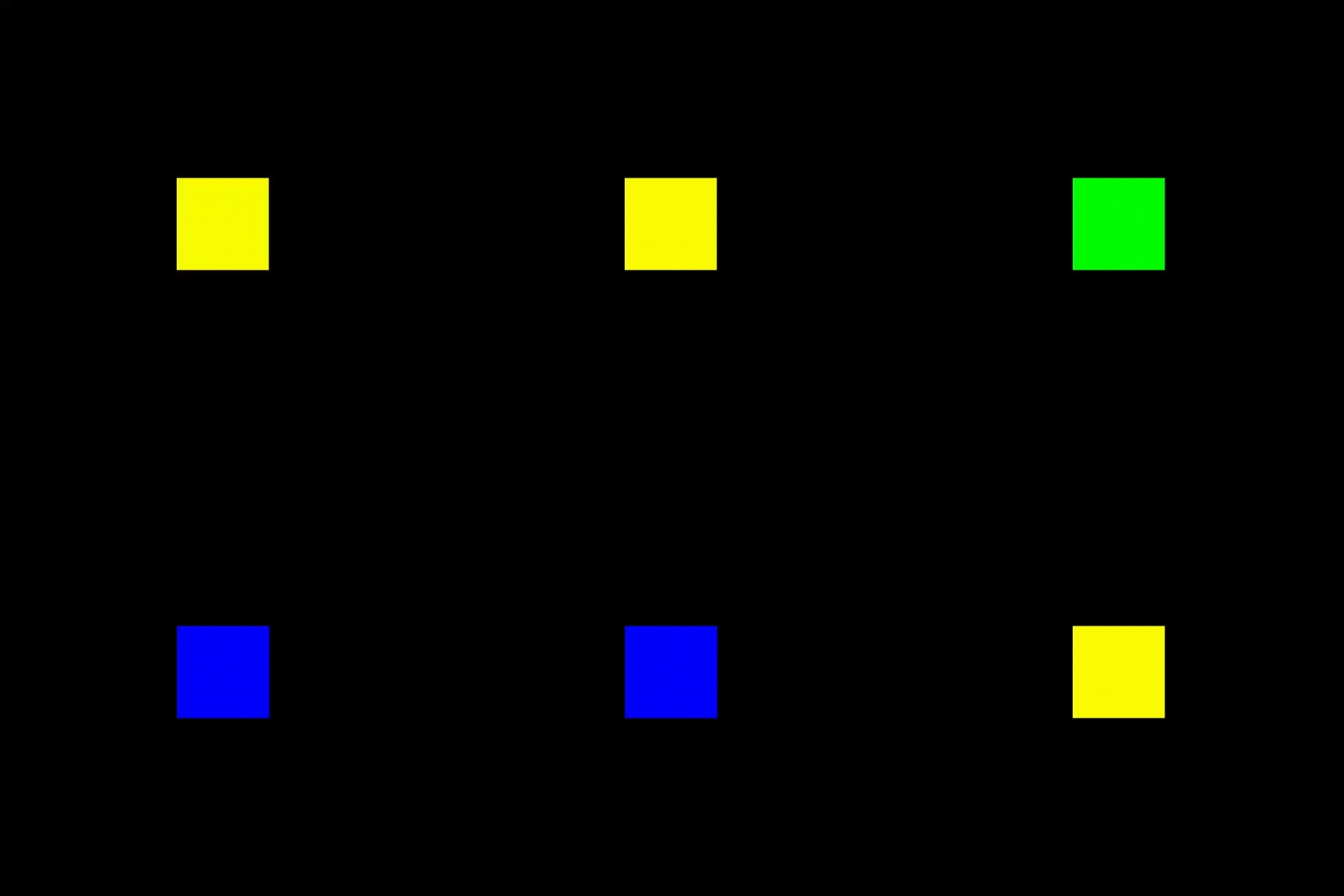
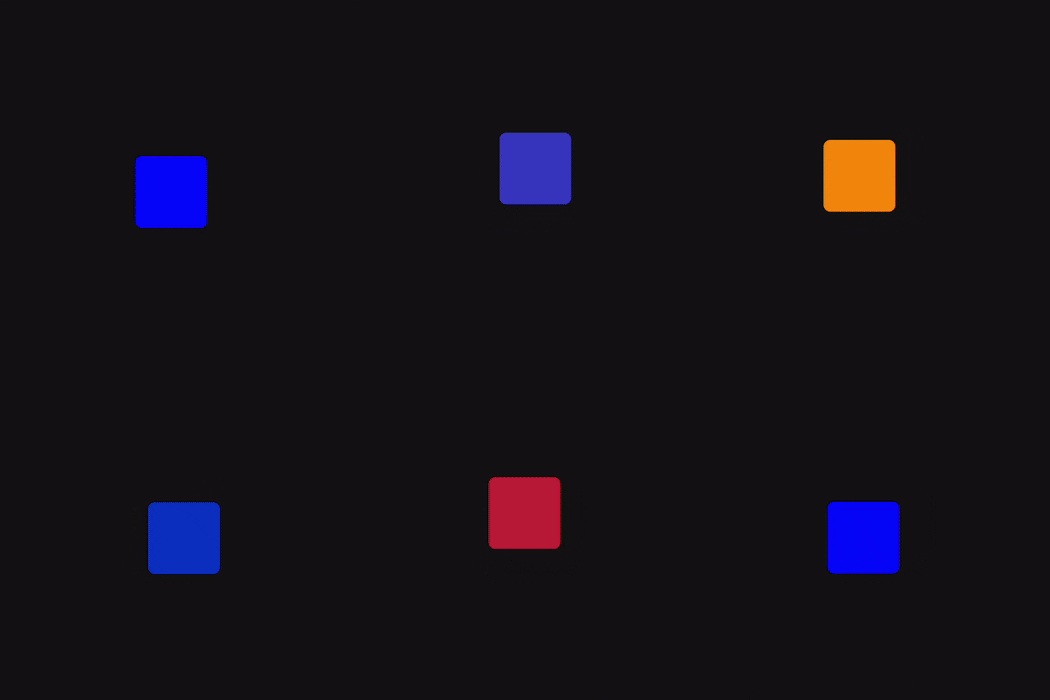
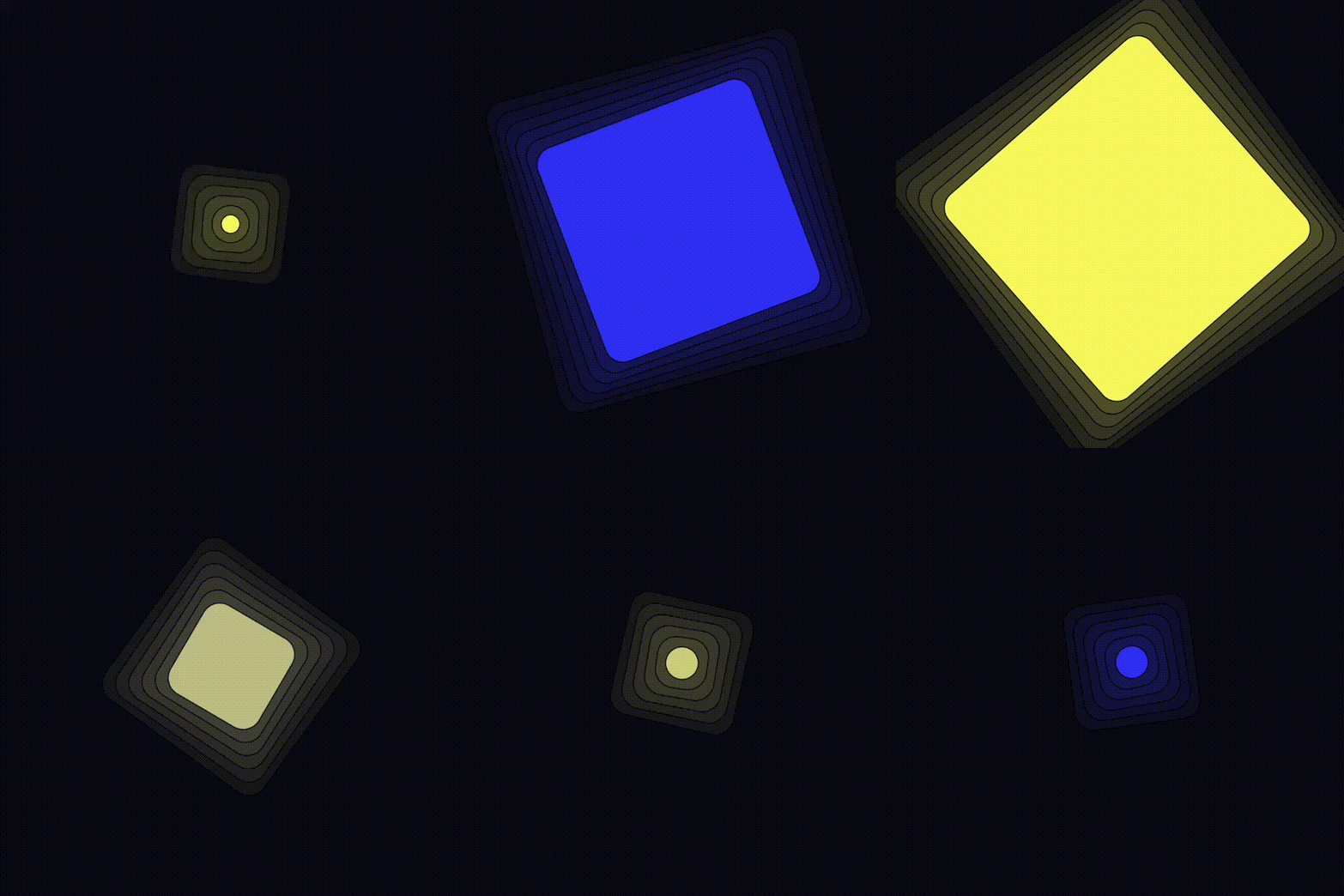
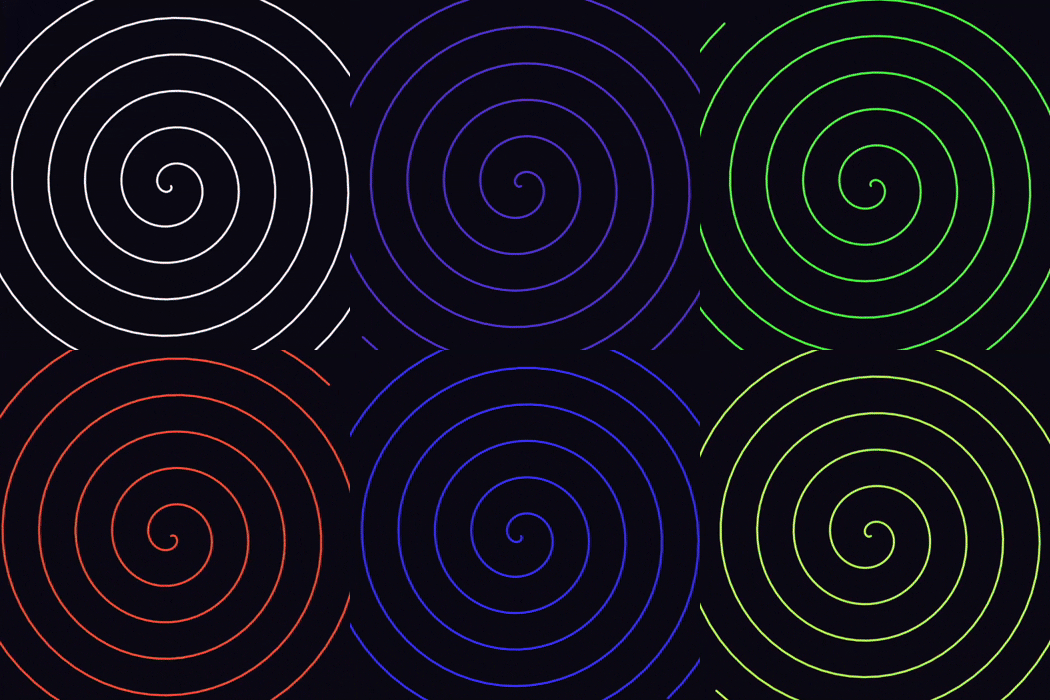
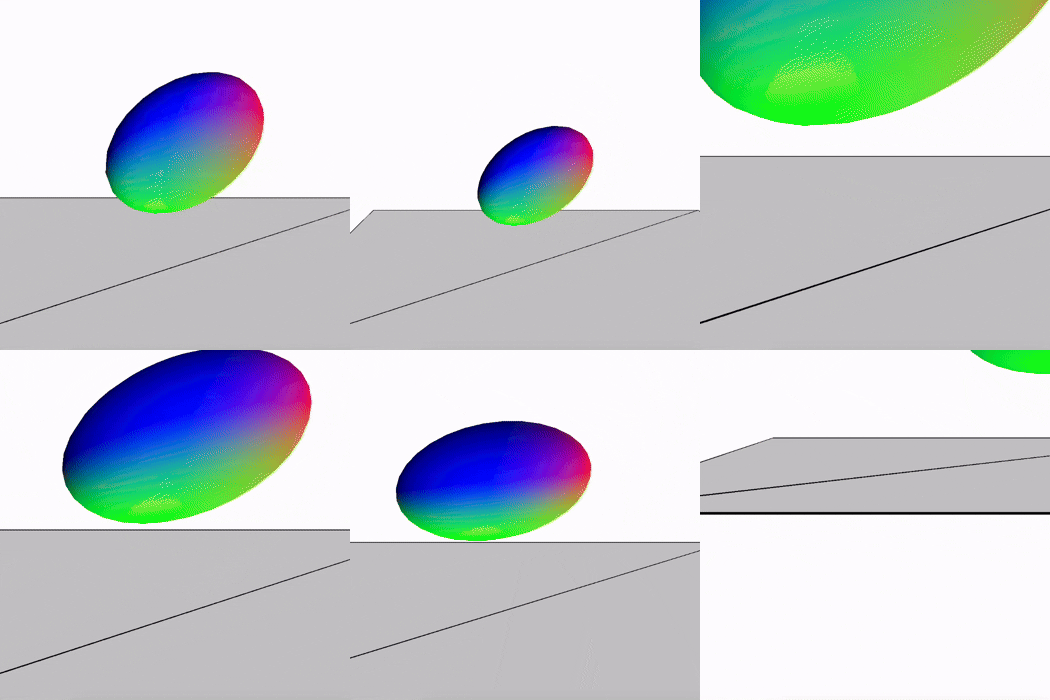
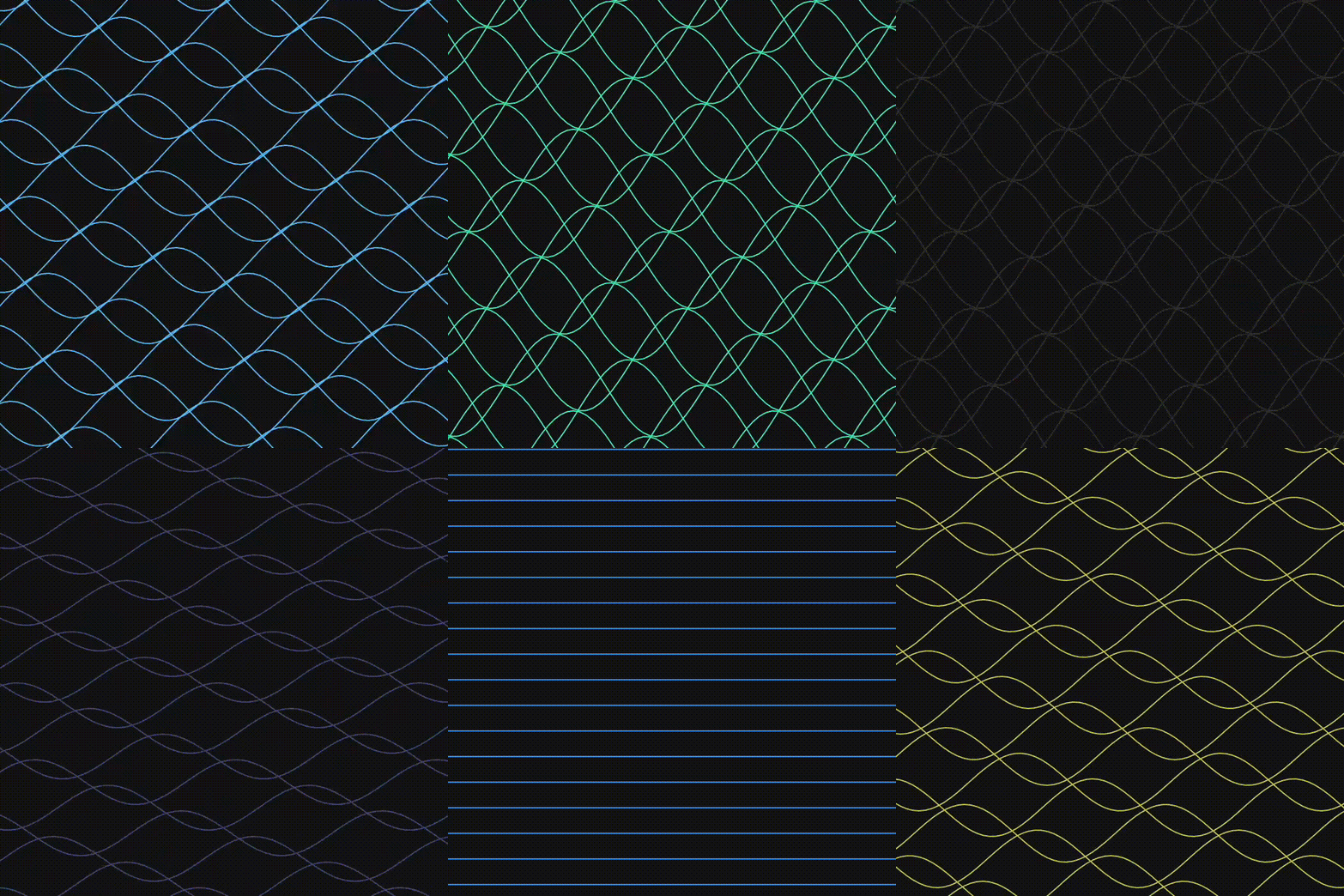
This is the first version of the colour change on key press I edited it so that the cube had rounded edges and kept the colour change on key press. I made the cube able to resize and change colour on different buttons key press. I made it so the cube would follow the mouse click position and the colour would change on arrow press. I messed around with shape and made a colour changing spiral I messed around with shapes and made is so a user can zoom in and out on the shape. My next step would be to add a button that changes the object shape. I made the square resize on arrow key press I messed with the 3d shape and turned it into a 2d one. I created a spiral that can be stopped and start on arrow key clicks. I made the spiral able to resize and change radius based on mouse press making a unique form. I made a basic background to use I expirimented with the background animation and colour. on clikc the background colour changes with each arrow press. Changed I made to the spiral I made it so the spiral could start and stop on arrow press which made it interesting. I messed around with gradients I made it able to go back and forth based on up and down key. I made the gradient change on space button press I made a dynamic moving background that expands and contracts based on up and down key press. I made it so that on up and down key press the colour changes. I made a dynamic moving spiral shape that follows the arrow keys. I could use this to make some sort of game on p5. I used my particle affect from project 2 and made it so the number of particles can increase and decrease on up and down press. With steves tutorial I made a black zoom in and out shape. When a user presses the forward arrow, the size of the square increases and when the back arrow is pressed, the size of the squares decreases. I made a group of circles that speed up on arrow press. When a user presses the arrow keys, the speed of the circles increase and they fly around the screen and bounce around the walls. Moving background without the interaction. This was the first iteration of my animation meaning it does not have the specifc interaction and is just a simple moving background. Dynamic wave that changes on arrow key press. On arrow press the wavelegnth changes and expands. The user can also press the left button to make the wavelegnth smaller.

Activity 2
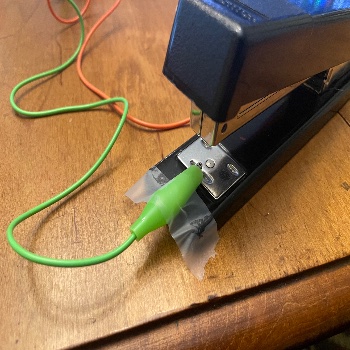
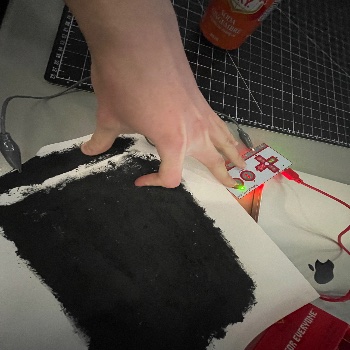
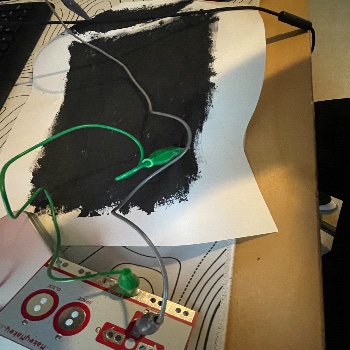
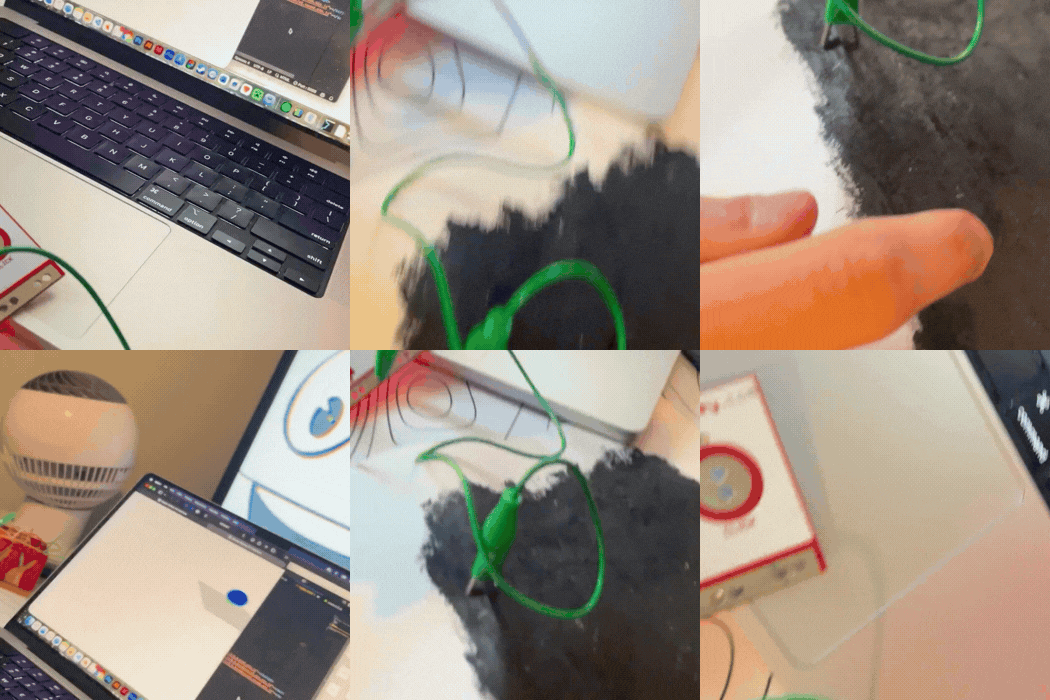
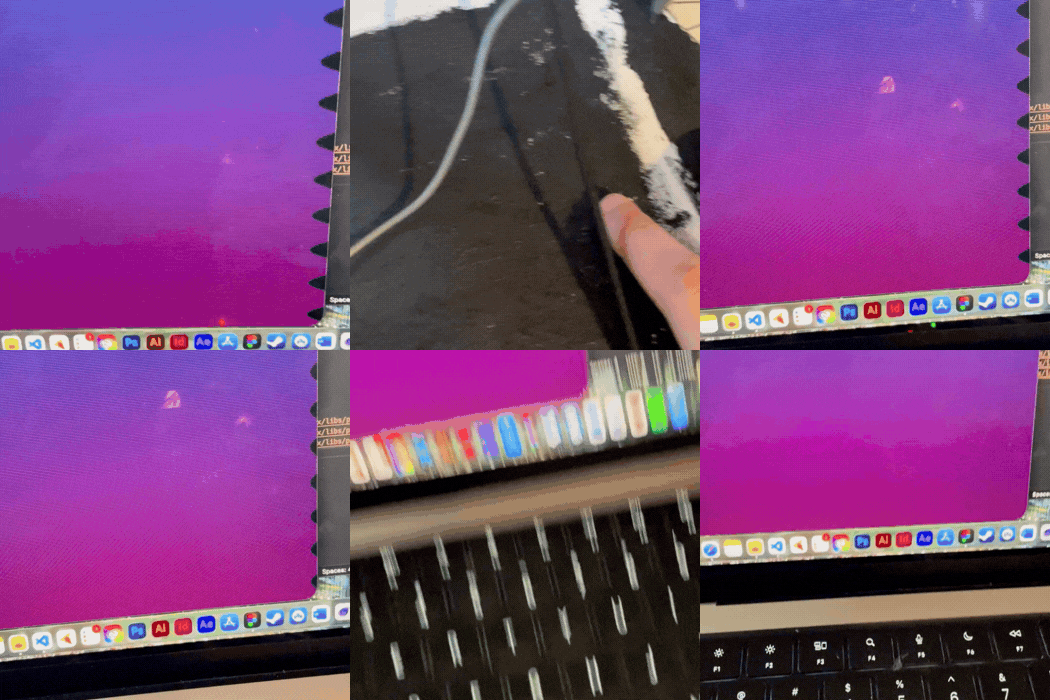
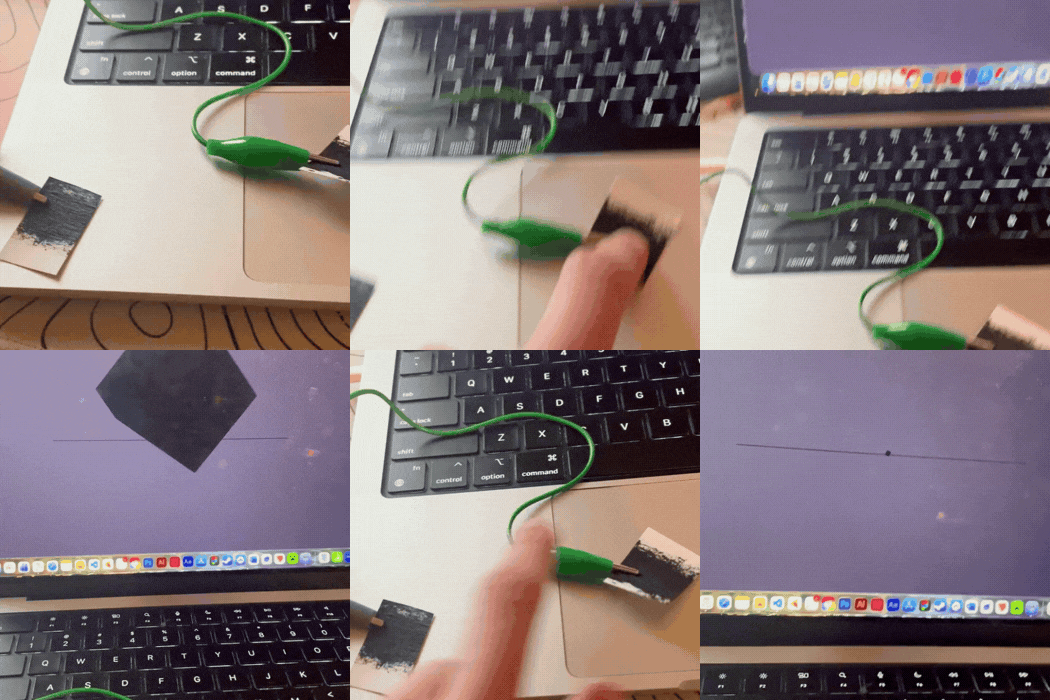
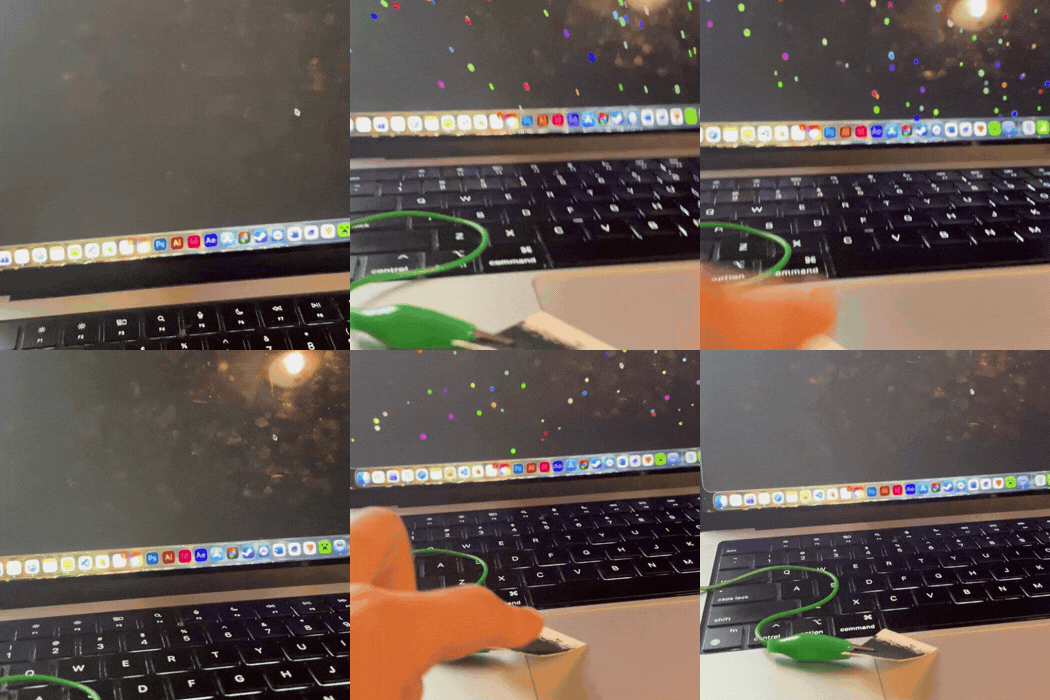
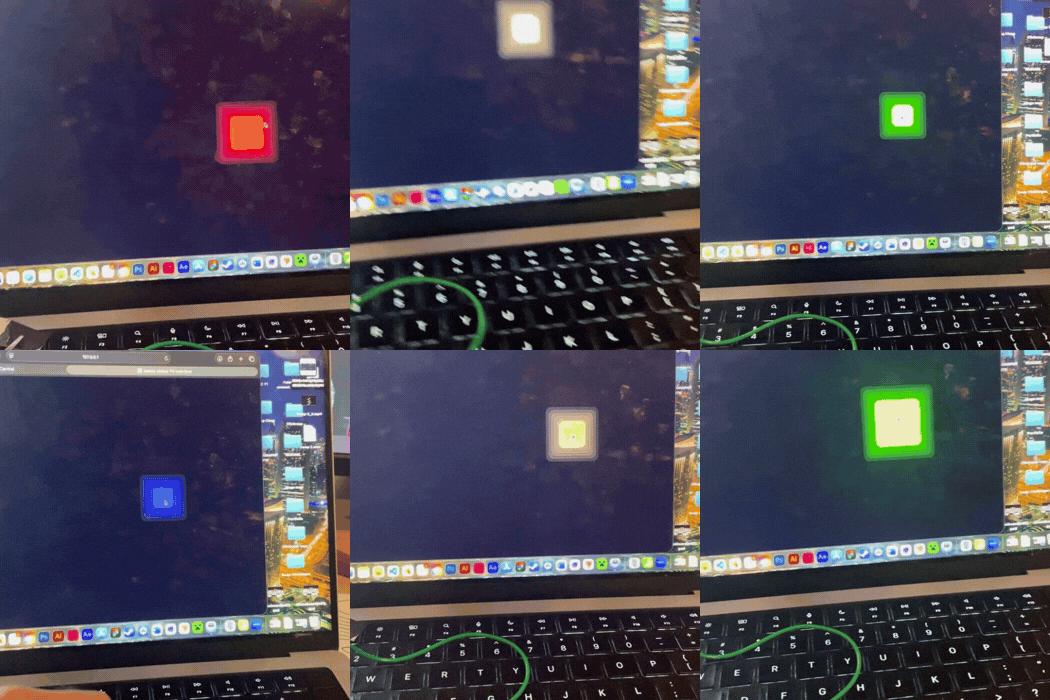
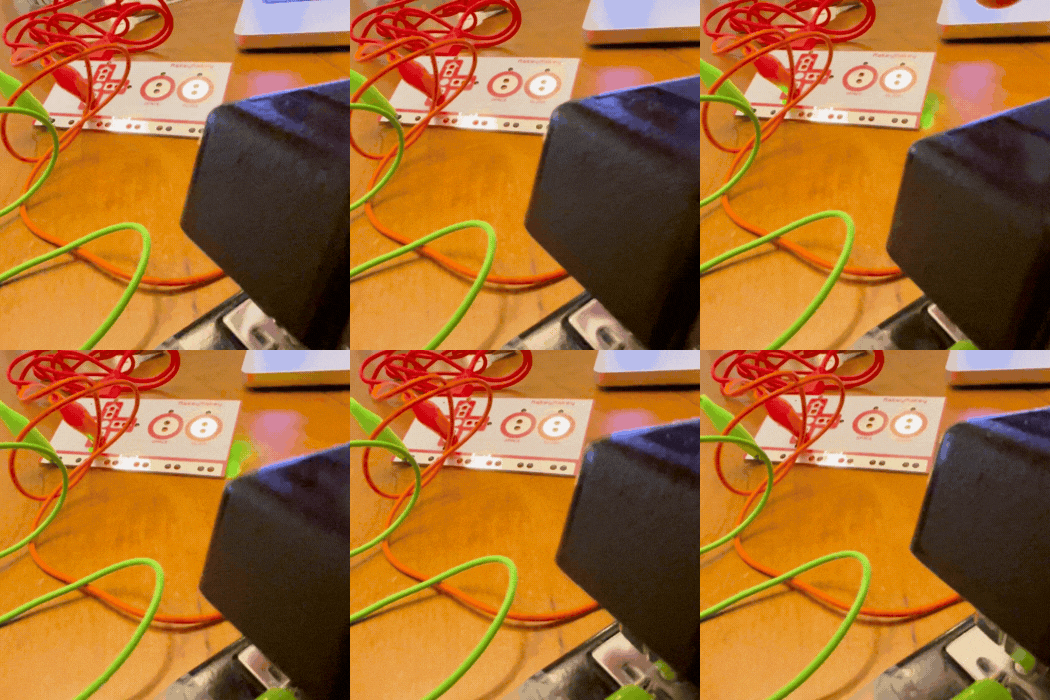
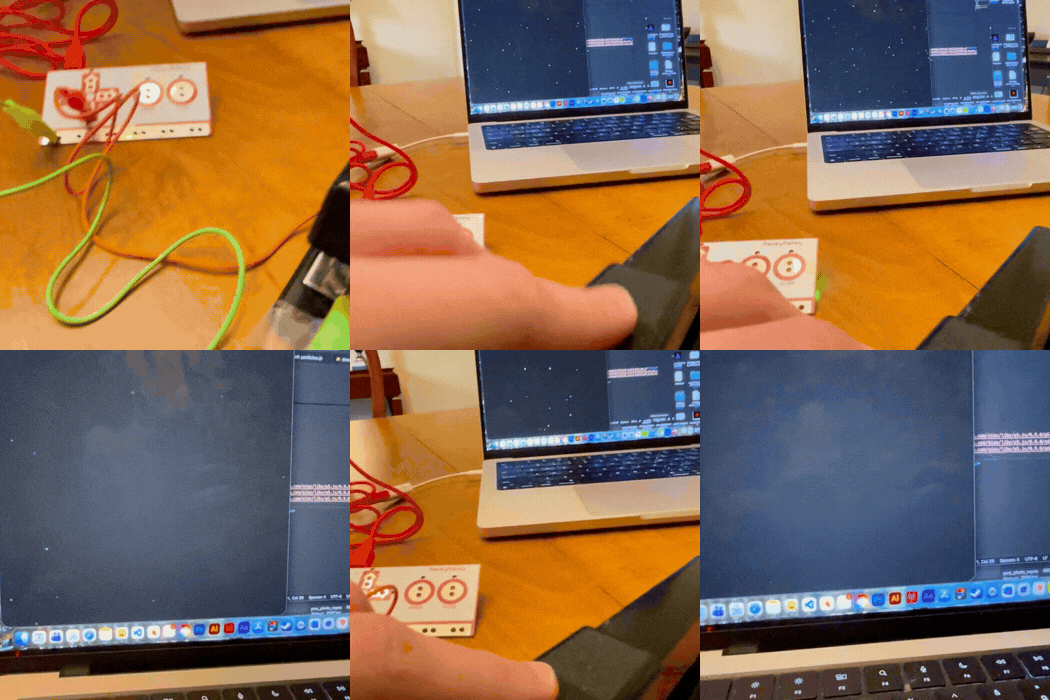
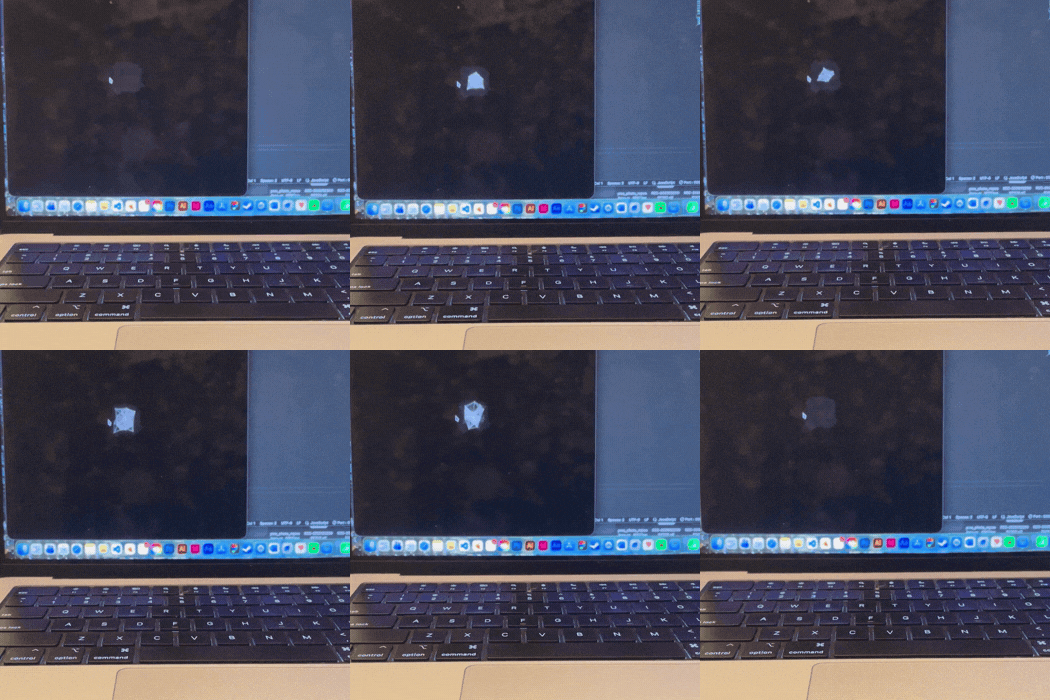
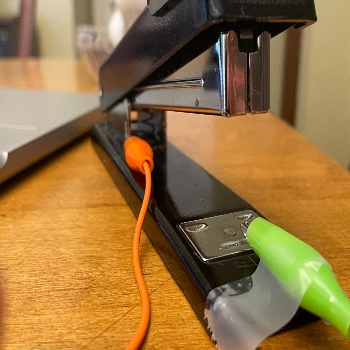
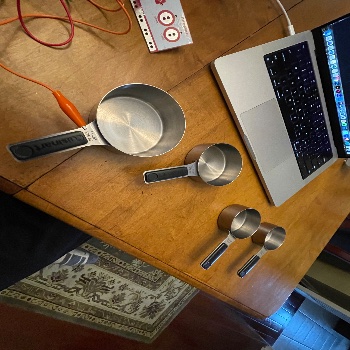
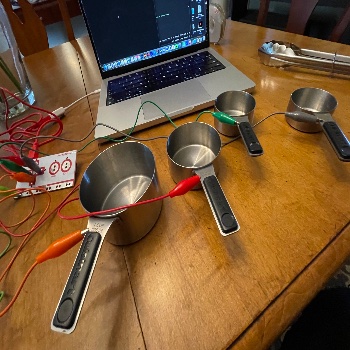
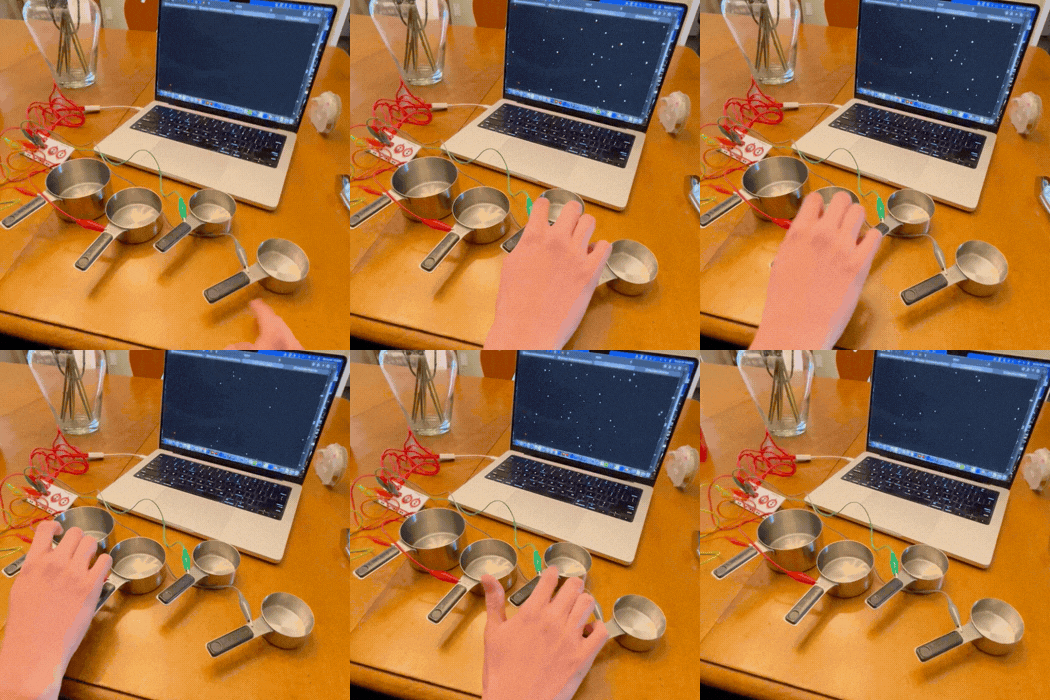
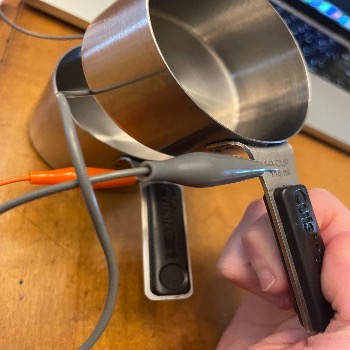
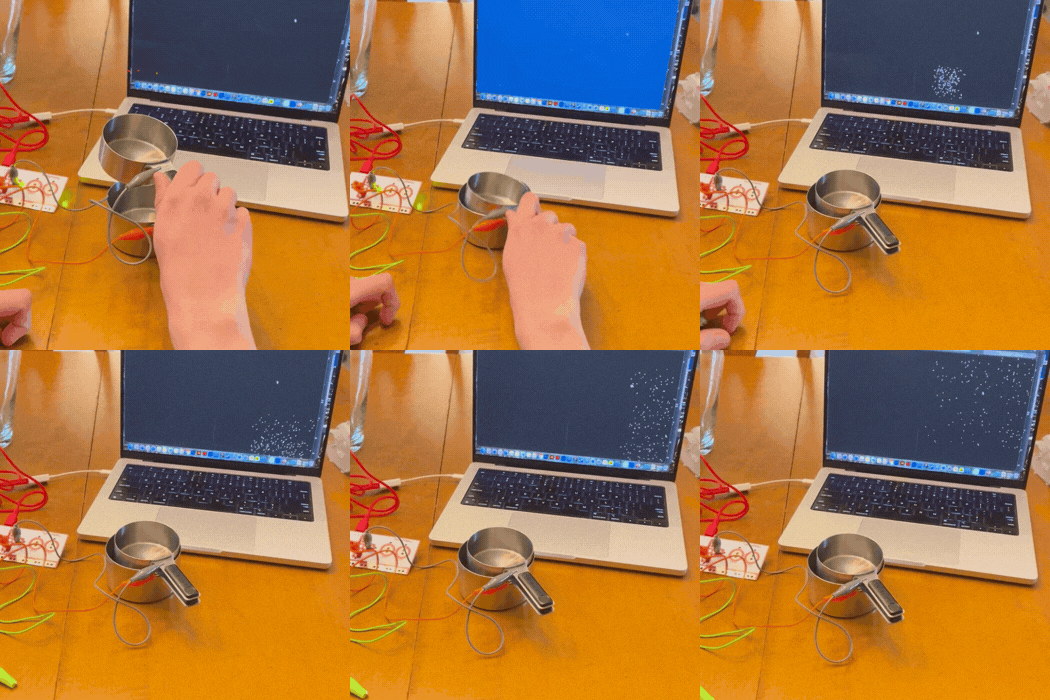
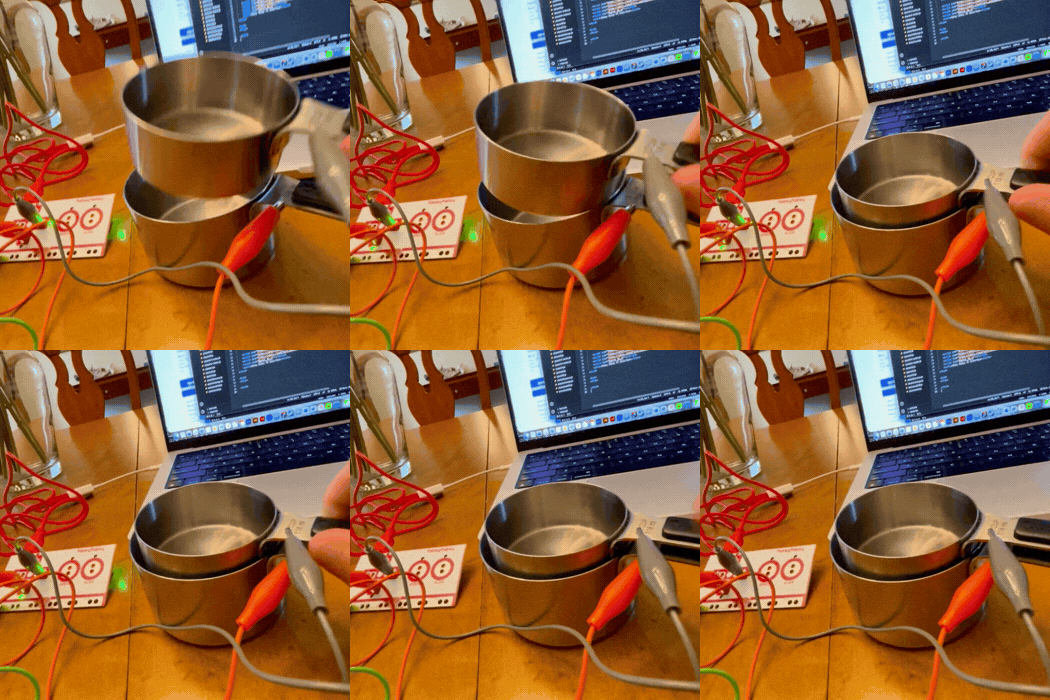
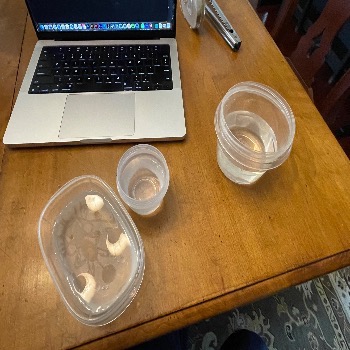
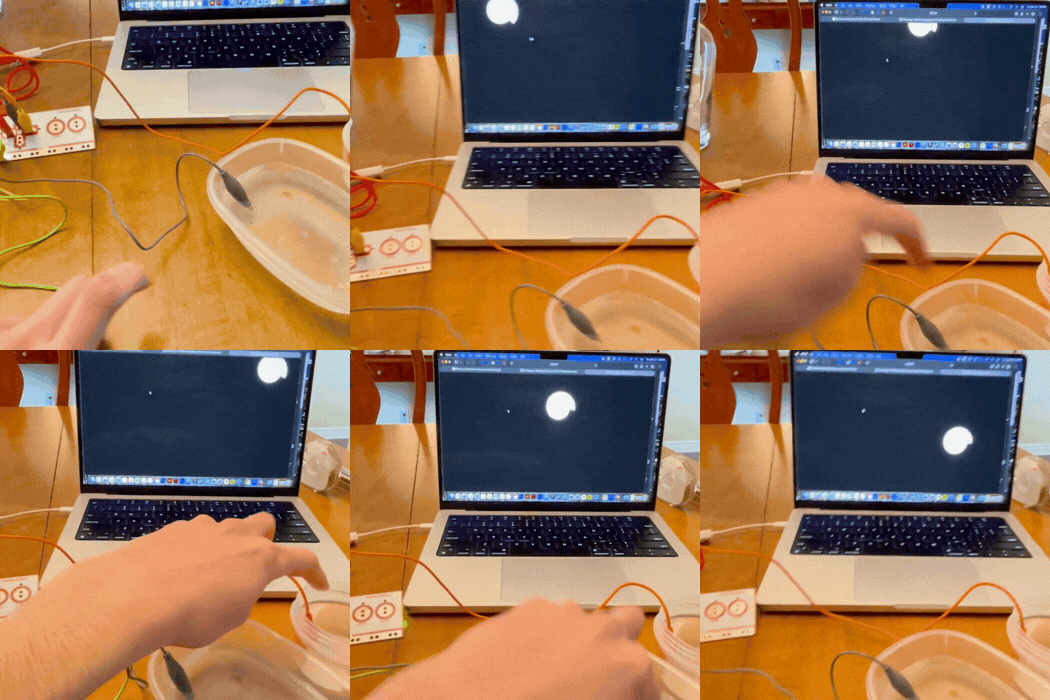
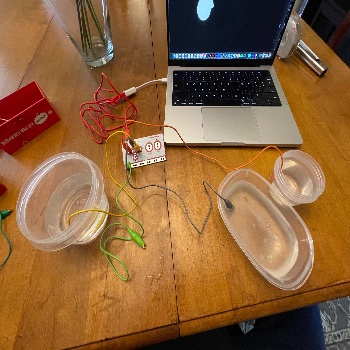
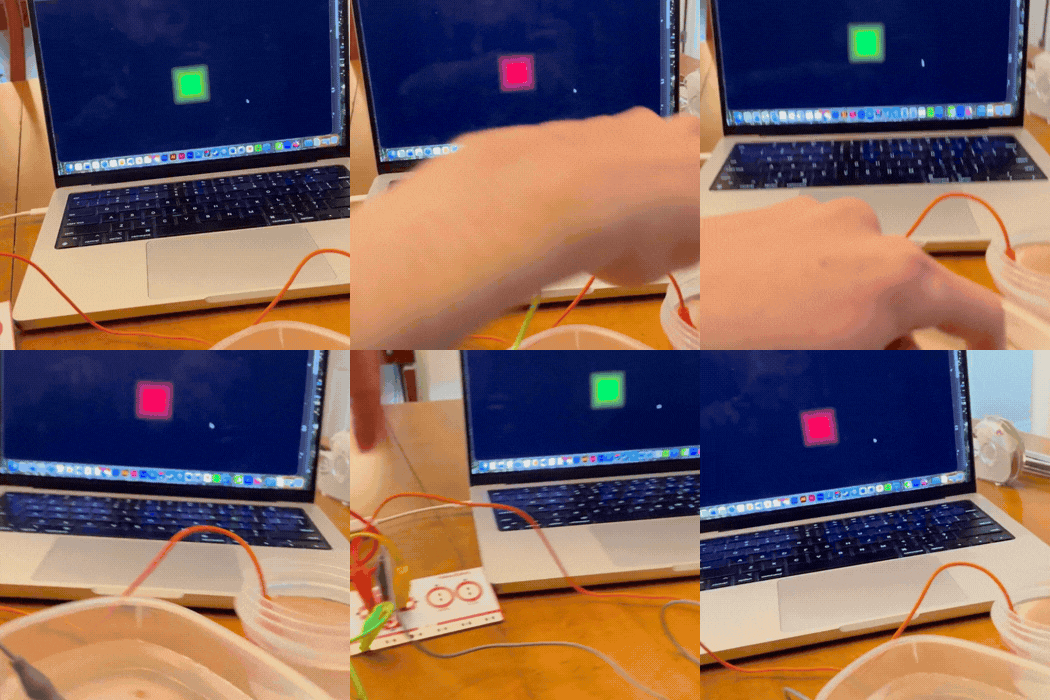
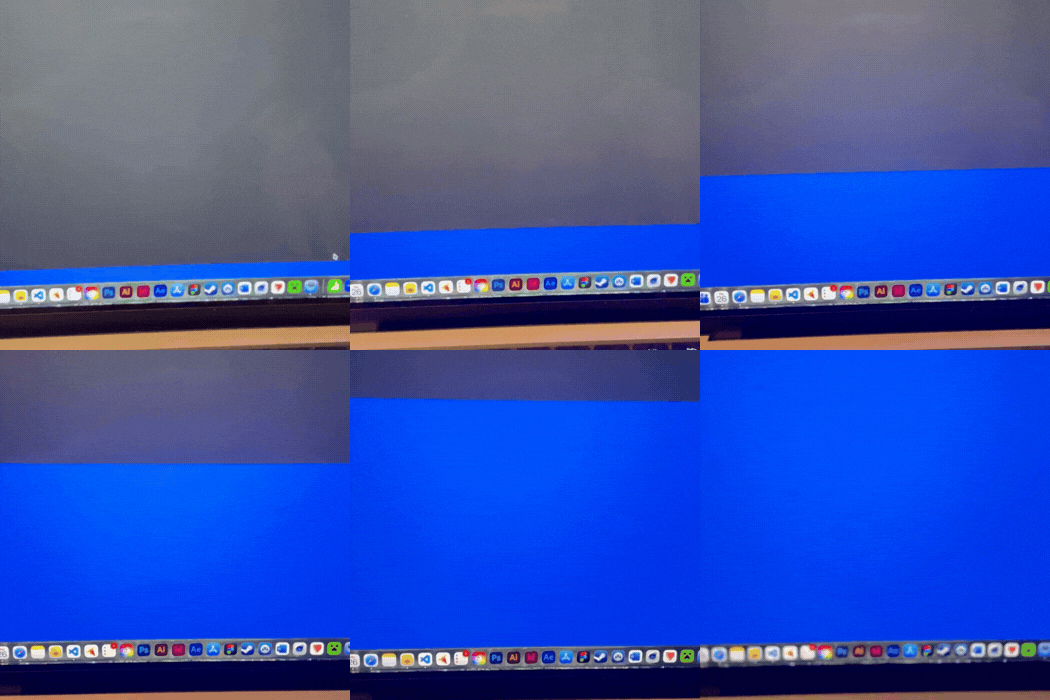
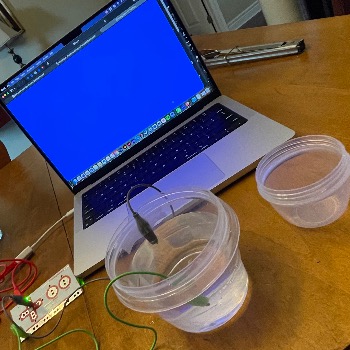
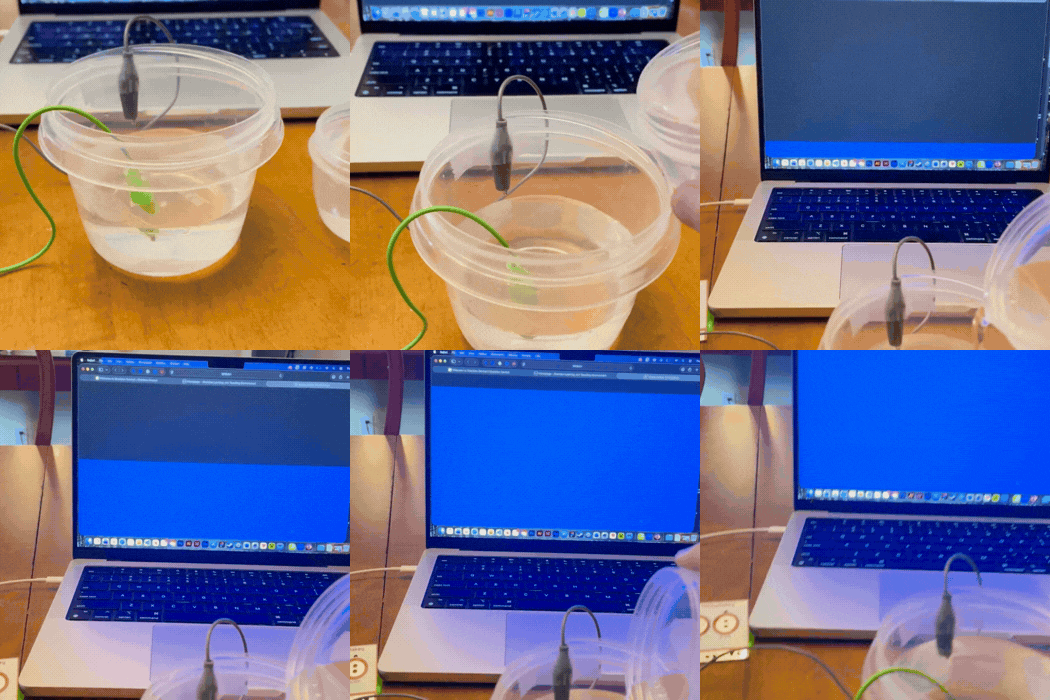
This was an image from in class of my painted conductive paint on a piece of paper. The light from the makey makey is shining showing the flow being completed. This is an image of how I had the conductive paint set up with the makey makey. This shows how I setup the makey makey with the conductive paint and how the interaction functions. I tested the painted sheet with a sketch from activity one where on click the wavelegnth would change on the visual. I had two functions that would increase and decrease the size of the wave. I cut up the painted sheet into two buttons and opened a file from activity 1 where I could resize a shape and shrink it uppon clicking the up and down arrow. I tried cutting the page into more pieces and used the individual buttons on a modified version of my sketch where on click particles would appear. On click the particles appear and on down arrow click they go away. I added more buttons and made it so on click the colour of the square would change for each button making the interaction unique and tied to each button press. I setup a circuit with a stapler. The interaction makes the stapler the button so on press the two points would connect completing the circuit and giving a visual to the user on the screen.  This video shows specifically how the flow of electrcitiy happens on click through the indicator light on the makey being highligted This is how the full interaction with the stapler works. On click the stapler connects and the visual plays on the screen. The aligator clip is taped in place making it not fall of during the interaction. This was one of the visuals I made with the code. I connected this with the stapler example so on click, the visuals woudl appear on screen and the particles would spread around. Another image of how the stapler circuit was setup and how it functions. The aligator clip is taped in place making sure it does not fall off when the interaction happens. I used measuring cups that were metal as a conductive material and would connect each aligator clip to the cup. I then used this with my sketch from earlier where on click particles would appear. I modified the particles so that on click the colour would change along with the number. I connected the alligaor clips to the metal measuring cups and set up the circuit. On click, the particles would appear on the screen completing the physical and digital interaction. This video displays how the interaction functions. The user can hold the other alligator I made an iteration where when a user puts the measuring cups together, the circuit completes. This video shows how the two measuring cups interact when placed within each other. This video shows the full interaction with the physical and digital components. On press, the cups connect and the animation plays on the screen completing the interaction. I decided to grab some containers and fill them with water. Since water is conductive this should make the interaction function effectively. This video illustrates that on click, the water interacts with the circuit and the visual appears on the screen. You can control the moving shape using the containers of water. This image depicts the basic setup and how I had the water filled in each container. I used this example with another sketch where on click the colour of the square on screen would change. I decided to make a sketch where on holding the up arrow, the screen would depict water being filled up. I had to idea of using this with a container of water so that when it reaches a certian height, the water would rise up completing the circuit/flow with the ground and button being connected. This is how the final setup looked for the interaction with the container of water. I taped the top alligator clip so that it would stay at a specific height in the cup. This made it so on the water reaching a proper height the circuit would be colmplete maaking the water rising visual appear on screen. This gif depicts how on filling up the container, the animation appears on screen and reacts to the water being put into the container. I wanted to make it appear that when a user is filling the cup, their actions are affecting what is going on on the screen. I could adapt this later and make it so that when a user empties the cup, the water is removed from the visual.

Project 3


Final Project 3 Design

This is my final design for project 3. The design is a interactive DJ booth where users can interact with the physical buttons and visuals on the screen will react to users input.

This is the final design for the project. This image depicts the soundboard with a variety of buttons that a user can interact with. Each button has different icons that give them a idea of what its function is. The sketch on p5js is a visulizer of 3 sin lines that move in differnet ways with the middle one reacting to the volume of the music. The user can change song, speed, loop music, play record scratch, and airhorn sound all with the buttons.
×

Powered by w3.css